Getting Set Up
Sarah is the administrator at Brookvale Golf Club, and she's setting up Snax for the club's own bar. The whole job is one enable flow and a four-step checklist, and she can stop and come back at any point - the dashboard remembers where she got to.
Enabling Food & Drink
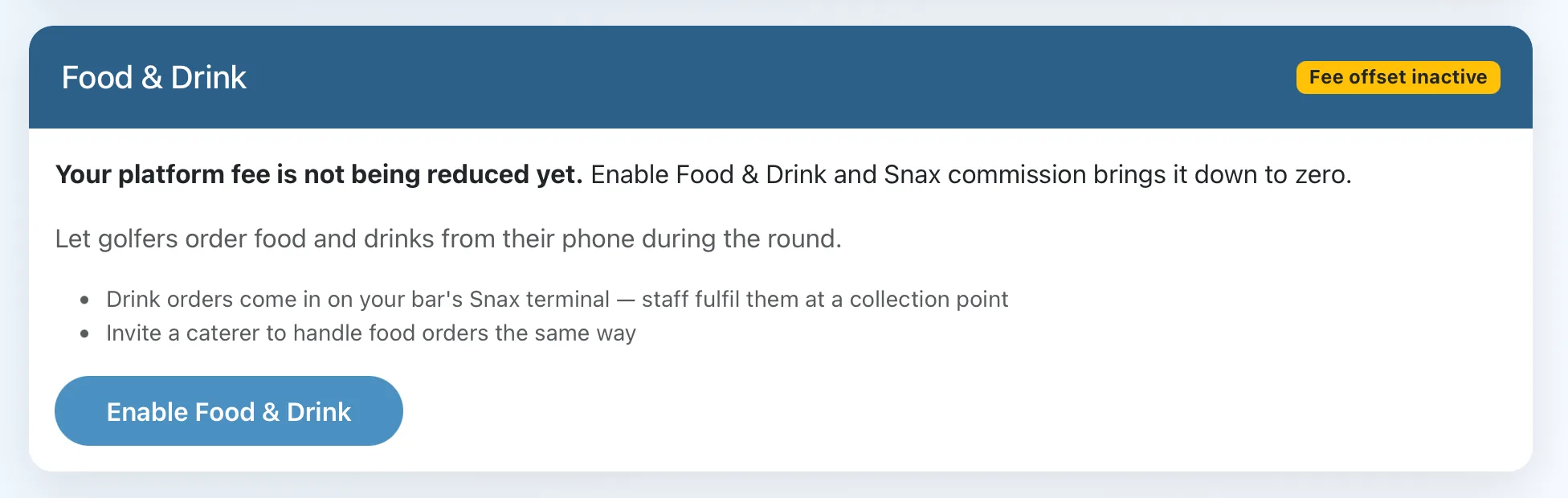
On her Lite dashboard, the Food & Drink card shows the platform fee is not being reduced yet. Sarah taps Enable Food & Drink.
The first screen states the commercial terms plainly: the commission rate, that it applies to on-course orders only, and that the club pays nothing until a golfer places an order. Society pre-orders are commission-free. She picks the currency her venue prices in - it's pre-selected from the club's country - and taps Accept and continue. (If she'd rather talk terms through first, Speak with us first sends the request to PazGolf and nothing goes live until they're agreed.)
Next she confirms the venue's address and ordering area - the circle on the map inside which golfers can place orders. It needs to cover the whole course, and she can adjust it any time later from the Location & Ordering Radius card on her dashboard.
That's the enable done. A confirmation email arrives with the commission terms for her records, and the provider dashboard opens with a checklist.
The four steps
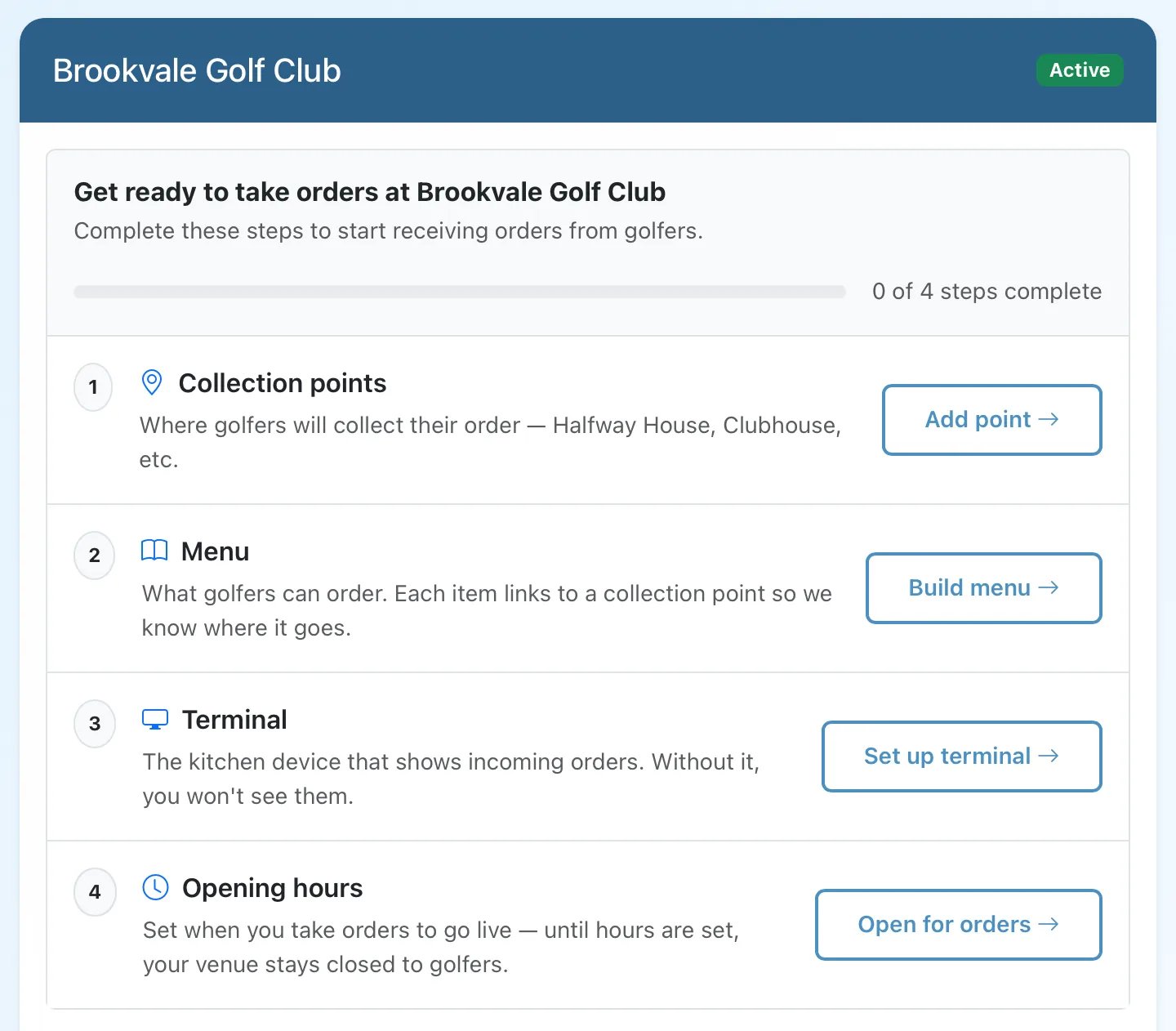
The checklist is the same list as the confirmation email, and it runs in the order that makes sense to do it:
1. Collection points. Where golfers collect their orders - the halfway house, the clubhouse hatch, wherever the course passes closest to the bar. Most clubs need exactly one. Every menu item links to a collection point, so this comes first.
2. Menu. What golfers can order, with prices and allergen information. Each item links to a collection point so the right counter sees it. Start small - a dozen items your bar can always serve beats a full kitchen menu that changes daily.
3. Terminal. The screen your bar or kitchen watches for incoming orders - a tablet by the till works well. Sarah generates terminal credentials (a venue code and PIN) and signs the device in once. Without a terminal, nobody sees the orders, so the checklist won't let this one slide. On an iPad, add the terminal to the Home Screen so it runs full screen with no browser bar - see Running Orders.
4. Opening hours. When you take orders. Until hours are set, the venue stays closed to golfers - this is the step that actually takes you live. Set them to match when the bar is genuinely staffed: an order nobody is there to make is worse than no order.
Tell the golfers
The venue is now live, but a live venue nobody knows about takes no orders. The dashboard has three print-ready A5 posters:
- The Fourball and Society QR posters, for the first tee and pro shop - golfers who scan to score find the Snax menu on their scorecard.
- The Snax ordering poster, whose QR goes straight to paz.golf/snax with no scorecard needed. Put it in the pro shop, or as a sign a few holes before your collection point - a 6th tee sign for a 9th hole pickup - so the order is ready when they walk up.
Inviting a caterer instead
If the kitchen at your club is run by an independent caterer, don't set their menu up under the club's account. Use Invite a Caterer from the dashboard instead: they get their own signup, their own terminal, their own commission invoice from their own account - and golfers still see one combined menu. Each business sees only its own figures: the club's invoices never show the caterer's numbers, and the caterer's never show the club's.