Running Orders on the Terminal
The terminal is the screen your bar or kitchen watches - a tablet or any device with a browser, signed in once with the venue code and PIN from setup. This page is the day-to-day: what the screen shows, and the two taps that matter.
The order board
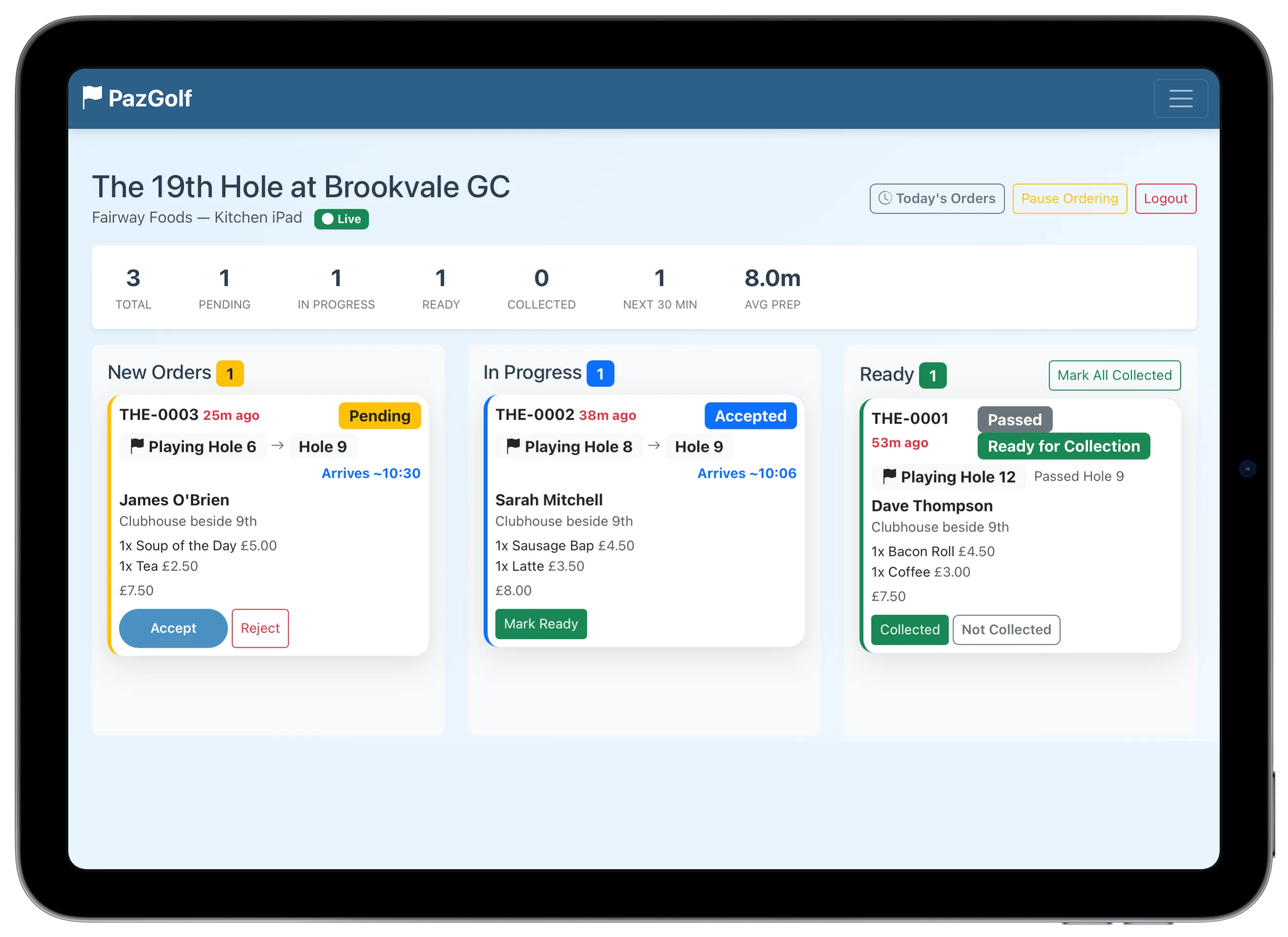
Orders arrive as cards and move left to right: New Orders, In Progress, Ready. Each card shows the golfer's name, what they ordered, and the buttons for the next step: Accept (or Reject) a new order, Mark Ready when it's up, then when the golfer collects and pays at the counter, mark it Collected - that's the tap that closes the loop, and it matters for the money: commission is calculated on collected orders only. If a golfer never shows, mark the order Not Collected and it's excluded from commission entirely. Use Not Collected for genuine no-shows only: golfers confirm collection on their own phones, and mismatches between the two are flagged for review.
Knowing when they'll arrive
Each card shows when the group is expected at the collection point. For golfers scoring on PazGolf, that estimate comes from live round tracking - as they finish holes, the timing updates itself. Scroll down from the board and the Golfer Tracking panel shows every golfer with an open order: their progress hole by hole towards the collection point, and when they're due.
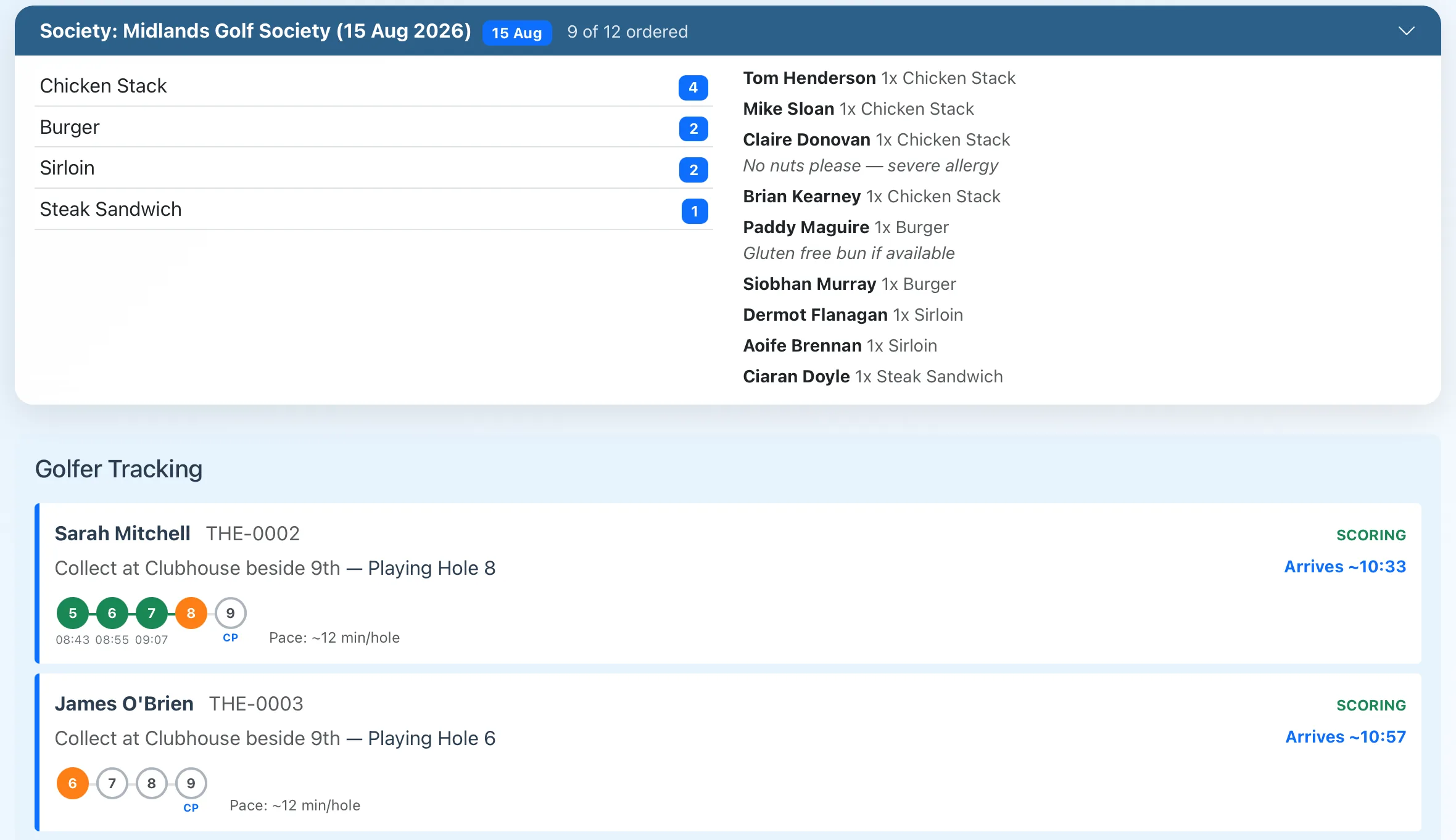
Above the tracking panel (and just below the board) sits Society Pre-Orders: one row per society day, with how many of the group have ordered so far. Open the row for the item totals and a name-by-name list with any notes, so the kitchen has its numbers before the coach arrives. Pre-orders are commission-free.
Orders placed at paz.golf/snax work from the hole the golfer told us they were playing, so those cards carry an amber Self-reported badge instead of live tracking. Treat the time as a good estimate rather than a promise, and if it passes, the card shows Due since so nothing sits forgotten under a heat lamp.
Full screen on an iPad
Running the terminal inside Safari leaves the address bar and tab strip on screen, which is where busy fingers stray. Add it to the Home Screen once and it opens full screen like an app:
- In Safari on the iPad, open the terminal login page (paz.golf/snax/terminal/login/).
- Tap the Share button, then Add to Home Screen. It offers the name Snax Terminal; tap Add.
- Open it from the new Home Screen icon and sign in with the venue code and PIN. That sign-in sticks for the icon, so staff just tap it each morning.
From then on the board fills the whole screen with no browser controls, and everything on this page works exactly the same, sound and reconnection included. On an Android tablet, Chrome's Add to Home screen gives you the icon but keeps the browser bar.
Sound
The terminal chimes when an order arrives. Browsers block sound until someone touches the screen, so after signing in you'll see a tap to enable sound badge - tap it once and the chime works for the rest of the day. If the connection drops and comes back, the terminal catches up by itself, including a chime for anything you missed.
When it's quiet
A quiet board needs no attention: the terminal stays connected on its own, there's nothing to refresh, and no reason to sign out between orders. Just leave it on where the counter staff can hear it. Tee-time spacing means groups reach the collection point a few at a time rather than all at once, and the arrival estimate on each card tells you when the next one is due.